



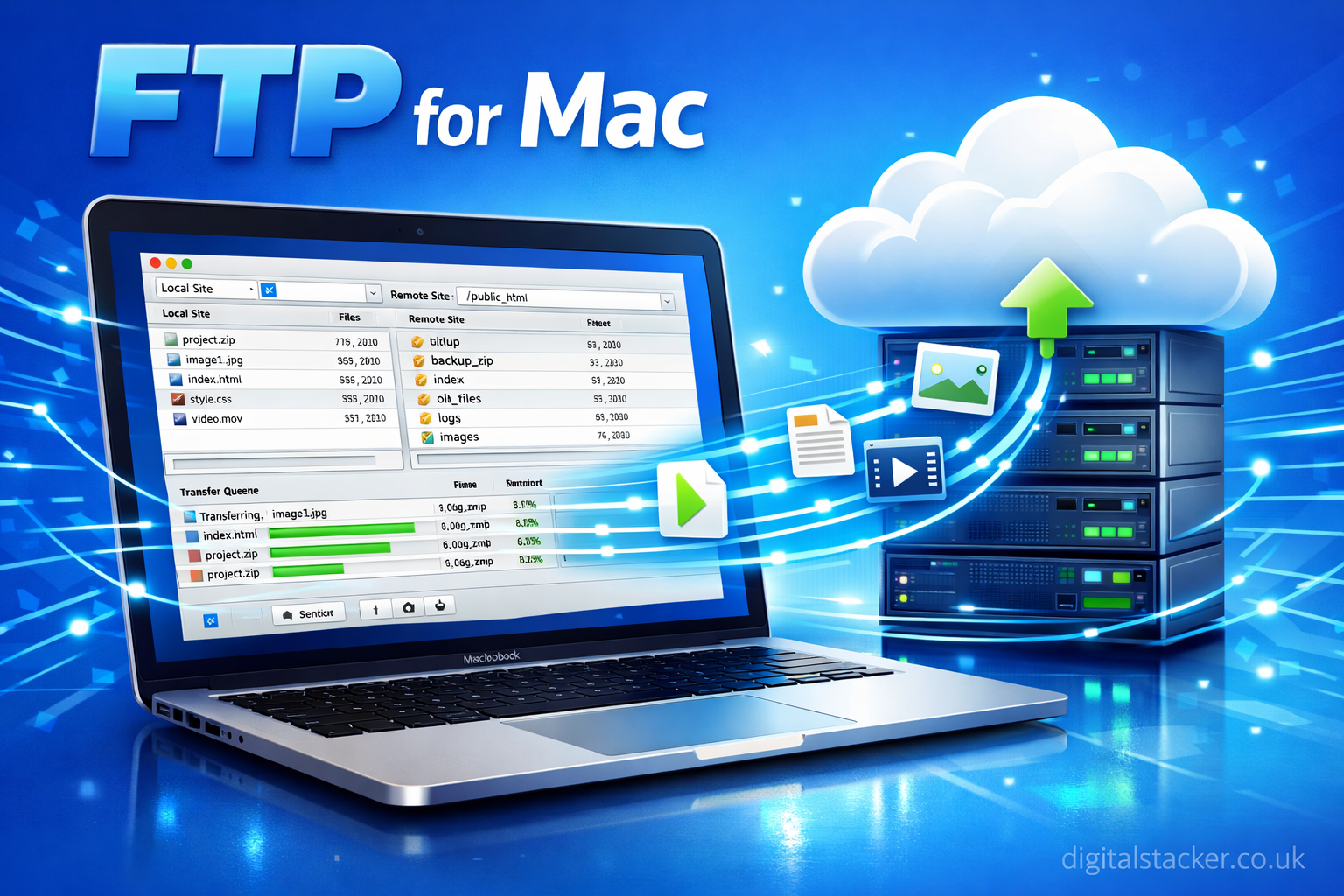
Introduction: Understanding FTP on Mac
FTP, or File Transfer Protocol, is a time-tested method used for transferring files between computers over the internet or a network. While modern cloud storage and file sharing solutions are becoming more common, FTP remains a critical tool for web developers, IT professionals, and anyone who manages servers or large file systems. On Mac, FTP functionality has evolved with macOS updates, moving from built-in solutions to more advanced third-party clients that provide additional features like secure connections, batch uploads, and remote file management.
Mac users often encounter FTP when managing websites, uploading large media files, or syncing data between local and remote servers. Understanding how FTP works on Mac is crucial because Apple has gradually limited built-in support, requiring users to rely on external tools or secure alternatives such as SFTP (Secure File Transfer Protocol) or FTPS (FTP over SSL/TLS). By mastering FTP on macOS, users gain the ability to transfer files efficiently, maintain organization, and secure sensitive information across platforms.
How macOS Handles FTP Natively
macOS offers limited built-in FTP support through Finder, the system’s default file management interface. By using the Go > Connect to Server option in Finder, users can enter the FTP server address and authenticate with a username and password. This feature allows access to the server’s file structure in a familiar interface, similar to navigating local folders. While convenient, this native functionality is restricted primarily to downloading and viewing files; uploading or editing files on the server is not supported through Finder.
Additionally, macOS’s Terminal can provide FTP access using command-line tools. This approach gives users precise control over file transfers, allowing them to use FTP commands to upload, download, and manage files. However, newer macOS versions have deprecated some of these tools, meaning that additional software installations, such as Homebrew packages, are often required. While powerful, command-line FTP is less user-friendly than graphical solutions, making it better suited for advanced users who are comfortable navigating Terminal environments.
Connecting to an FTP Server Using Finder
Connecting to an FTP server via Finder is a straightforward process for Mac users. By selecting Go > Connect to Server from the top menu and entering the server’s FTP address (e.g., ftp://example.com), users can access the server’s files once they provide login credentials. This method is best suited for simple tasks like browsing server directories and downloading files to the Mac.
Although Finder is convenient for basic access, it lacks features such as drag-and-drop uploads, folder synchronization, and remote file editing. For users who require full server management capabilities, a dedicated FTP client is recommended. Still, Finder remains useful for quick access and routine downloads without additional software, providing a lightweight solution for simple FTP needs.
Using FTP in Terminal for Advanced Users
Terminal-based FTP access allows experienced Mac users to control file transfers directly using command-line commands. A typical command involves typing ftp ftp.yourserver.com in Terminal, followed by entering the username and password. This method gives full access to server operations, including uploading, downloading, deleting, and renaming files.
It is important to note that newer macOS versions no longer include native FTP command support, requiring users to install packages such as inetutils via Homebrew to restore functionality. While command-line FTP provides extensive control and flexibility, it is less intuitive than graphical clients and is best suited for developers or IT administrators familiar with text-based commands and server protocols.
Choosing the Right FTP Client for Mac
Because native support is limited, many Mac users rely on third-party FTP clients to manage files more effectively. Clients such as Cyberduck, Transmit, ForkLift, and Commander One offer features beyond what Finder or Terminal provide, including drag-and-drop uploads, multi-protocol support, synchronization, and secure connections. These clients are designed to make managing large or complex file systems easier and more reliable.
Cyberduck is known for its simplicity and support for FTP, SFTP, and cloud storage integrations, making it suitable for casual and professional users alike. Transmit is popular for its advanced syncing capabilities, while ForkLift combines file management with dual-pane navigation for more complex workflows. Commander One supports multiple protocols simultaneously, including FTP, FTPS, and SFTP, providing flexibility for users who handle multiple server types or large file transfers regularly.
Ensuring FTP Security on Mac
Standard FTP is inherently insecure because data—including usernames, passwords, and files—is transmitted in plain text. This vulnerability makes FTP unsuitable for sensitive data or connections over unsecured networks. To overcome these risks, Mac users are encouraged to use secure alternatives such as SFTP, which operates over SSH, or FTPS, which adds SSL/TLS encryption to standard FTP connections.
Most modern FTP clients support these secure protocols, allowing users to transfer data without exposing sensitive information. Enabling encryption not only safeguards credentials but also prevents unauthorized access to the files being transferred. Prioritizing secure FTP connections is critical for professionals working with confidential data or managing servers connected to public networks.
Common FTP Problems and Troubleshooting
FTP connections on Mac may encounter several common issues. Firewall restrictions, incorrect server settings, or outdated clients can prevent successful connections. Ensuring that the required ports (port 21 for FTP and port 22 for SFTP) are open and properly configured often resolves connection issues. Verifying the server address and credentials is also essential, especially if login attempts repeatedly fail.
Compatibility problems may arise due to macOS updates reducing native FTP support. Using an up-to-date third-party client or installing necessary command-line utilities can overcome these limitations. Additionally, adjusting FTP modes between active and passive in your client settings often stabilizes connections with servers that have specific firewall or routing configurations.
Alternatives to FTP on macOS
While FTP remains useful, modern alternatives offer improved security and convenience. SCP (Secure Copy Protocol) provides encrypted transfers over SSH, which is ideal for server administrators and developers who require safe file management. Cloud storage solutions such as Google Drive, Dropbox, and OneDrive offer synchronized file transfers with minimal configuration, making them ideal for collaboration and everyday file sharing.
Despite the availability of these alternatives, FTP continues to play an important role for workflows that require direct server access, large file transfers, or legacy systems that do not support cloud integration. By combining secure protocols, reliable clients, and proper troubleshooting techniques, Mac users can effectively use FTP while maintaining safety and efficiency.
Read More:Tech News TogTechify: Latest Trends & Insights Guide
Conclusion
FTP for Mac remains a vital tool for transferring files between local machines and remote servers. While built-in macOS support has diminished, graphical FTP clients and secure alternatives like SFTP and FTPS provide powerful and user-friendly solutions. Whether connecting through Finder, Terminal, or third-party software, mastering FTP ensures efficient file management, secure transfers, and the ability to work with a wide range of server environments. For developers, IT professionals, and everyday users handling large or sensitive files, understanding FTP on Mac is an essential skill that combines flexibility, control, and reliability.
